jpgRM Blog
How to remove people from photos with AI
A stranger walking through the frame or a photo bomber can change the focus of a picture. jpgRM lets you mark the unwanted person and review a reconstructed background while keeping the edit under your control.
Use only images you own or have permission to edit.
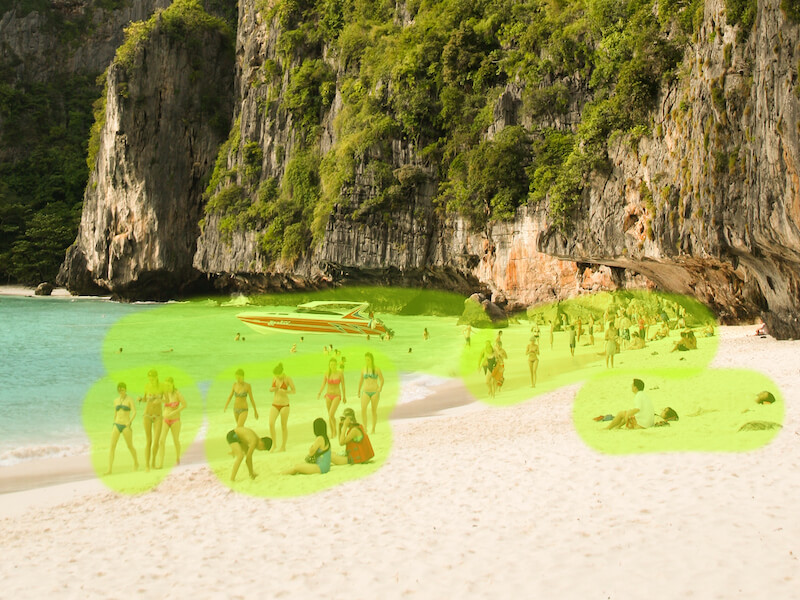
Before
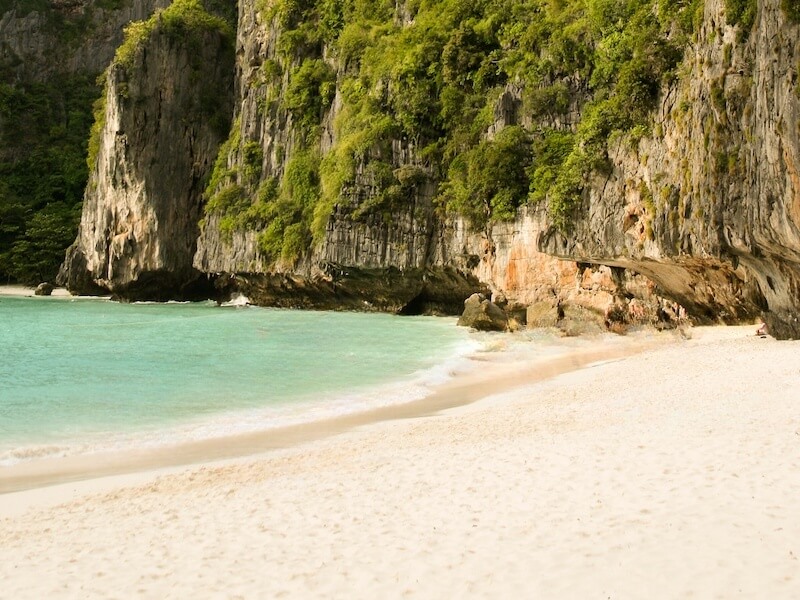
After
When people removal is useful
This workflow is useful for travel photos, street scenes, property images, event pictures, and personal snapshots where a passerby is not part of the intended subject. It can also help simplify a crowded background when you are preparing an image for a slide, listing, or social post. Use it only for images you own or are authorized to edit, and take extra care when other people’s privacy or consent is involved.
For a beach photo, start with one background passerby and their shadow, keeping the person you want to retain outside the mask. After processing, follow the shoreline and horizon across the repaired area: a broken line or repeated patch is a reason to undo and try a smaller selection. A person covering the main subject, a reflection, or repeating architecture may need manual retouching; AI cannot recover the exact hidden detail.
A practical people-removal workflow
- Choose the photo. Select the image from the jpgRM home page and wait for it to open in the editor. Keep a copy of the original before editing.
- Start with one person. If several people need to be removed, deal with the most obvious subject first. A smaller, focused selection is easier to evaluate than one large mask.
- Include the person’s full outline. Paint over the body, clothing, hair, accessories, and any visible shadow that should disappear. Do not leave a thin strip around the silhouette.
- Protect nearby subjects. Leave enough of a buffer around a person you want to keep. If two people overlap, process the removable area in smaller sections and inspect each result.
- Compare before downloading. Check faces, hands, rails, windows, pavement lines, and other details that reveal a repeated or stretched background. Refine the mask if necessary.
Five tips for natural-looking edits
- Remove the shadow when appropriate. A floating shadow can make the edit more noticeable than the original person.
- Watch the horizon and perspective. Buildings, roads, tables, and fences should continue in a consistent direction after the person is removed.
- Use separate passes for a crowd. Removing one passerby at a time makes it easier to see which selection caused a problem.
- Zoom in near faces and hands. These high-contrast shapes make small leftover pixels easy to spot.
- Do not oversell the result. If the person covers a large subject or a unique background detail, keep the original and consider a manual retouch for final publication.
Privacy, rights, and limitations
Removing an unwanted passerby from a photo is different from altering an image to misrepresent an event or a person. Make sure the edit is appropriate for how you plan to use the picture, and do not upload images you have no right to process. jpgRM is an editing tool: it reconstructs the marked region using surrounding pixels, so it cannot know exactly what was behind an occluding person.
For a simple wall, sky, floor, or landscape, the result may need only one pass. For a busy crowd or a person standing across several objects, inspect each area separately. A clean-looking preview at one size may reveal artifacts when viewed larger.
Frequently asked questions
Can I remove one person from a group photo?
You can mark the person you want to remove, but overlapping bodies and faces make the task more difficult. Work carefully around the people you want to keep and review the result at a larger zoom.
Should I include a person’s shadow?
If the shadow is part of the unwanted distraction, include it in the selection. Otherwise the result may leave a visible trace that does not match the surrounding light.
Will the tool restore what was behind the person exactly?
No. The selected area is reconstructed from nearby pixels. It can continue simple textures, but it cannot recover details that were fully hidden.
Can I use this workflow for images from a public event?
Only if you have the legal right to edit and publish the image and the alteration is appropriate for your intended use. You remain responsible for the image and the people shown in it.