jpgRM Blog
Remove unwanted objects from photos with AI
A passerby, sign, bin, cable, or stray item can distract from an otherwise useful photo. jpgRM helps you mark that area and create a cleaned-up version without learning a complex editing program.
Use only images you own or have permission to edit.
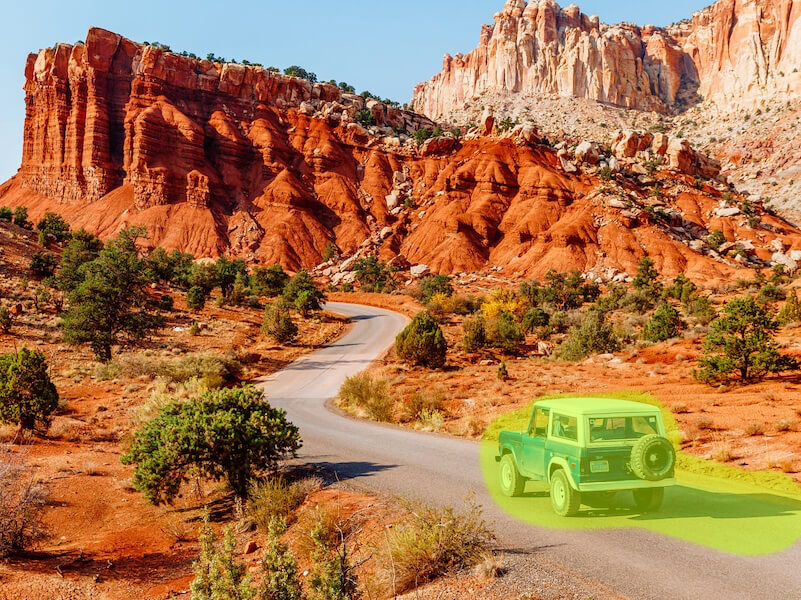
Before

After
When object removal is useful
Object removal is useful when the surrounding background is more important than the item in front of it. You might want to clear a person from a travel photo, tidy a room before sharing it, remove a distracting product detail, or prepare a cleaner image for a presentation. The tool is designed for targeted edits: you choose the area, rather than asking the service to change the entire picture.
Before you begin, upload only an image that you own or have permission to edit. Keep the original file so you can compare the result or try a different selection later.
How to remove an object
- Open the tool and select your image. Use the jpgRM uploader from the home page. The selected image is opened in the browser editor before you submit a cleanup.
- Paint over the complete object. Mark the object from edge to edge. Include a thin portion of its outline and include a cast shadow when the shadow is part of the distraction.
- Start the cleanup. Submit the selection and wait for the edited image to return. The inpainting process uses nearby image information to reconstruct the marked area.
- Inspect the result at a useful zoom. Compare the edited image with the original. Look for repeated patterns, straight lines, or edges that need another pass.
- Refine and download. If needed, clear or adjust the mask, process a smaller section, and compare again before downloading the result.
Practical tips for cleaner results
- Cover the whole object. Leaving a narrow strip behind can make an edge or shadow remain visible.
- Work around important edges. For a fence, table, building, or horizon, use a smaller brush near the edge so the surrounding structure stays easier to reconstruct.
- Remove complex objects in stages. A large object crossing several textures is often easier to handle as two or three smaller edits.
- Check repeating backgrounds. Brick, tiles, text, and railings may need a second pass because small alignment errors are easy to notice.
- Use the comparison view. A result can look convincing at a glance but still contain a duplicated detail. Compare before downloading.
What object removal can and cannot do
The result depends on the pixels around the selected area. Removal is usually easier when the background has visible texture or a simple continuation. It can require more refinement when an object covers a face, a sharp architectural line, a hand, or a large part of a repeating pattern. jpgRM reconstructs the selected region; it does not recover the exact hidden pixels from the original scene.
For images with several distractions, start with the most prominent one and review the result before making the next selection. This keeps each edit easier to diagnose and gives you more control over the final picture.
Frequently asked questions
Do I need to select the object precisely?
Try to cover the full object and its immediate edge. A slightly generous mask is often more useful than leaving a visible outline, but avoid marking unrelated areas that you want to keep.
Can I remove a person, sign, or cable?
Yes, these are common cleanup use cases when you have the right to edit the image. Results vary when the item overlaps an important subject or a complicated pattern.
Can I run another cleanup if the first result is not right?
Yes. Use the editor to make a new selection or work on a smaller area, then compare the new result with the original.
Does jpgRM preserve the exact hidden background?
No. The selected region is reconstructed from surrounding image information, so the result is an edited interpretation rather than a recovery of pixels that were never visible.